Project Configuration
Google Play Requirements
64-bit Device Support
Starting from August 1, 2019, apps published on Google Play are required to support 64-bit architectures. It is recommended to use two ABIs (Application Binary Interfaces): "armeabi-v7a" and "arm64-v8a".
Supporting the "armeabi-v7a" ABI ensures compatibility with 32-bit ARM devices, while supporting the "arm64-v8a" ABI ensures compatibility with 64-bit ARM devices.
By ensuring that your app supports both ABIs, it will be compatible with a wide range of devices and provide a better user experience on different Android devices available in the market.

Target Android SDK
Set minSDK version = 24 and target version = 35
In your gradle file set minSDK version to 24 and target version to 35:
android {
    compileSdkVersion 35
    // add namespace
    namespace "com.example.package"

    defaultConfig {
        applicationId "package_name"
        minSdkVersion 24
        targetSdkVersion 35
        testInstrumentationRunner "androidx.test.runner.AndroidJUnitRunner"
    }
    //...
}
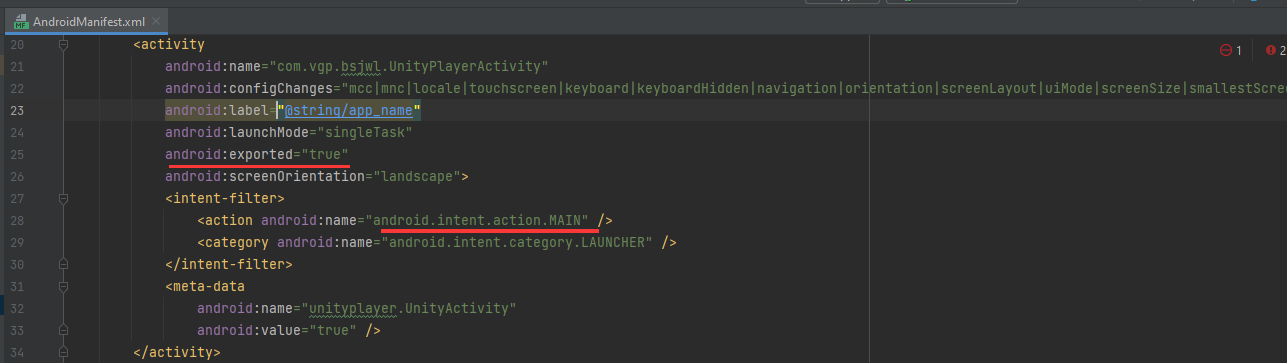
Add android:exported="true" in AndroidManifest in Activity MAIN
AAB Format
Starting from the second half of 2021, Google Play requires new apps to be published using the Android App Bundle (AAB) format. Additionally, new apps that exceed the size limit of 200 MB are required to utilize either Play Feature Delivery or Play Asset Delivery.
If you are unfamiliar with the Android App Bundle (AAB) and its overview, you can refer to our document for more information. Please visit the following link: Android App Bundle Overview
| App component | App download size limit |
|---|---|
| Base module | 200 MB |
| Individual feature modules | 200 MB |
| Individual asset packs | 1.5 GB |
| Cumulative total for all modules and install-time asset packs | 4GB |
| Cumulative total for asset packs delivered on-demand or fast-follow | 4GB* |
Build Configuration
Enable Databinding and Setup Compile Java Version
At build.gradle app level:
- Add Java version 8 to android block:
compileOptions {
    sourceCompatibility JavaVersion.VERSION_1_8
    targetCompatibility JavaVersion.VERSION_1_8
}
- To add data binding to your project and use it with your SDK, follow these steps:
- Open your build.gradle file.
- Inside the
androidblock, locate thedataBindingsection. If it doesn't exist, you can add it. - Within the
dataBindingsection, set theenabledproperty totrue. This enables data binding for your project.
Here's an example of how it should look:
android {
    // Other configurations...

    dataBinding {
        enabled = true
    }
}
Configuration Files
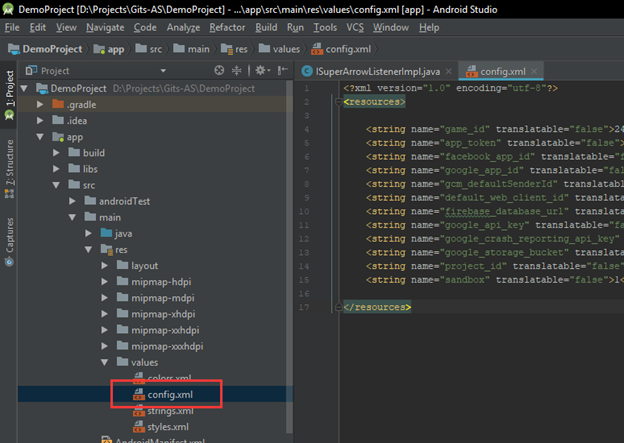
Copy config.xml to app/res/values
Add Config.xml into app/res/values this config.xml file inside at root of zip file we sent you